
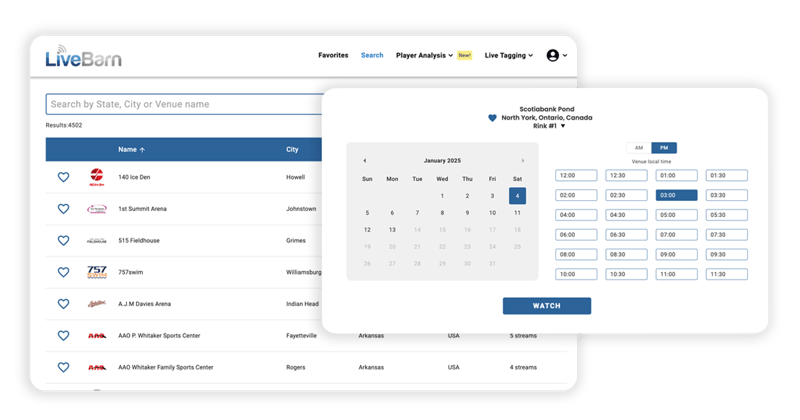
Step 1
Log in to LiveBarn on your web browser. Locate your game On-Demand by finding the venue and using the calendar. Choose the time segment that contains your Highlight.
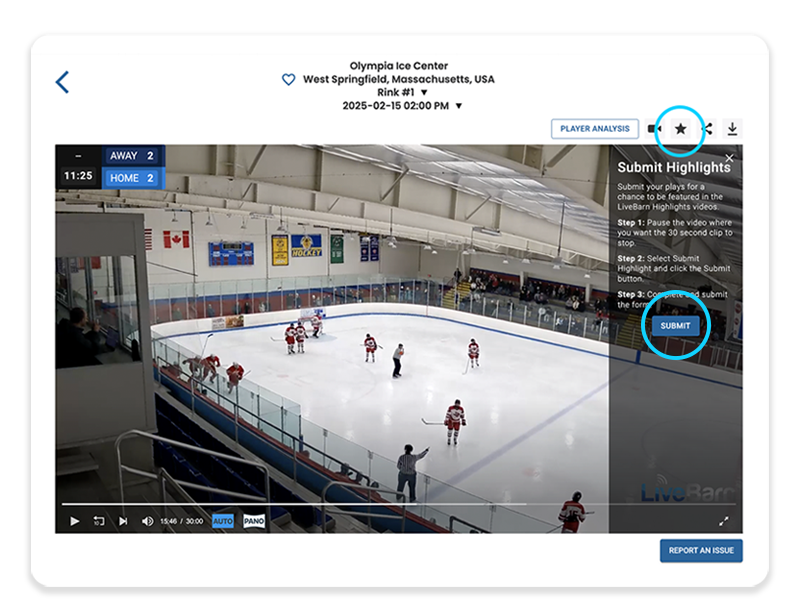
Step 2
Click the star icon above the video player screen (this is not visible while viewing full screen). Instructions will appear. Pause the video where you want your 30-second Highlight to end and then press the SUBMIT button.
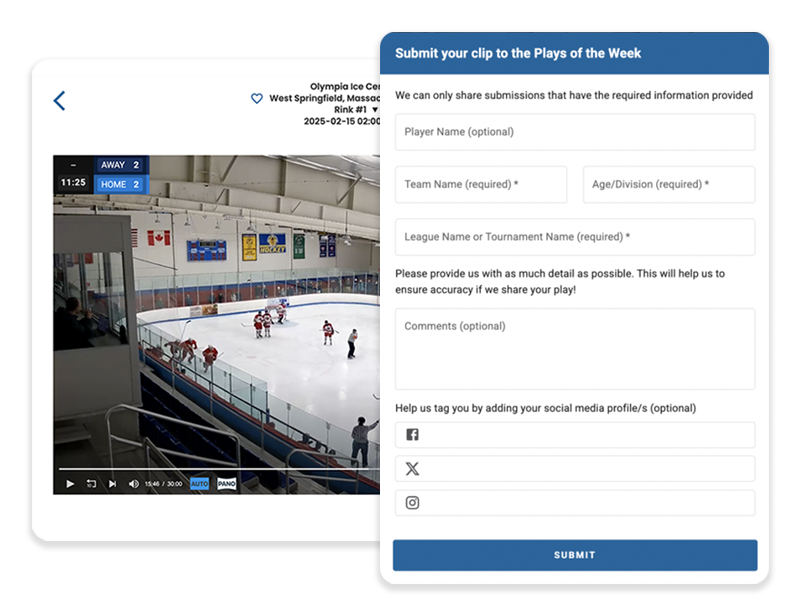
Step 3
Fill in the player name (optional), team name, age/division, league/tournament name and any additional comments or social media handles then SUBMIT.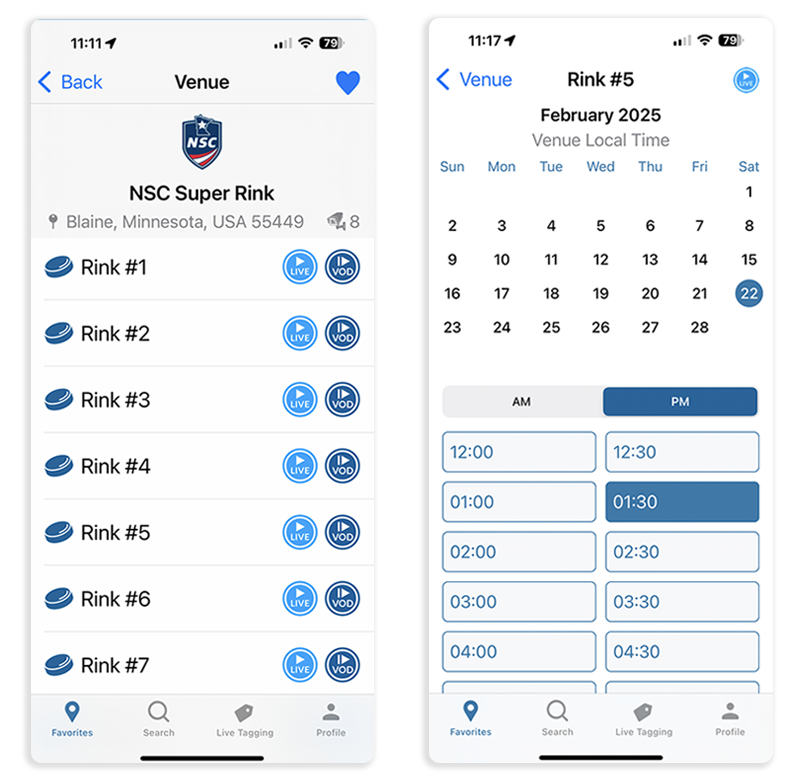
Step 1
Log in to LiveBarn on your mobile app. Locate your game On-Demand by finding the venue and using the calendar. Choose the time segment that contains your Highlight.
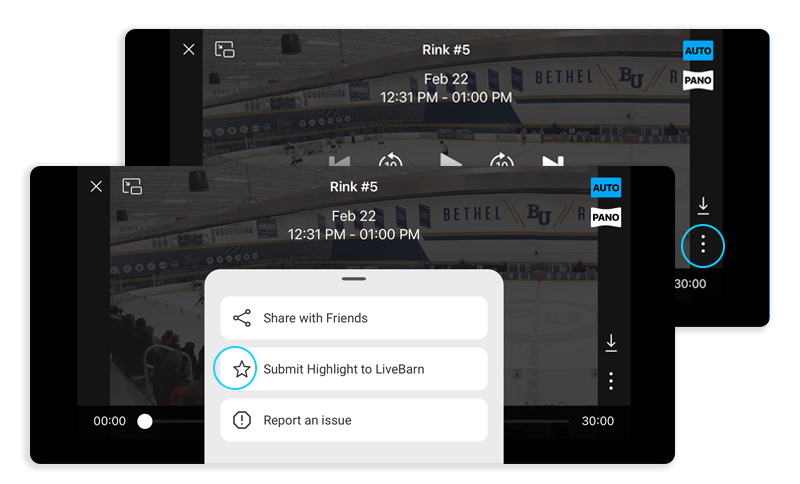
Step 2
Tap on the screen to pause the video where you want your 30-second Highlight to end. Tap the three dots in the bottom right-hand corner and choose “Submit Highlight to LiveBarn"
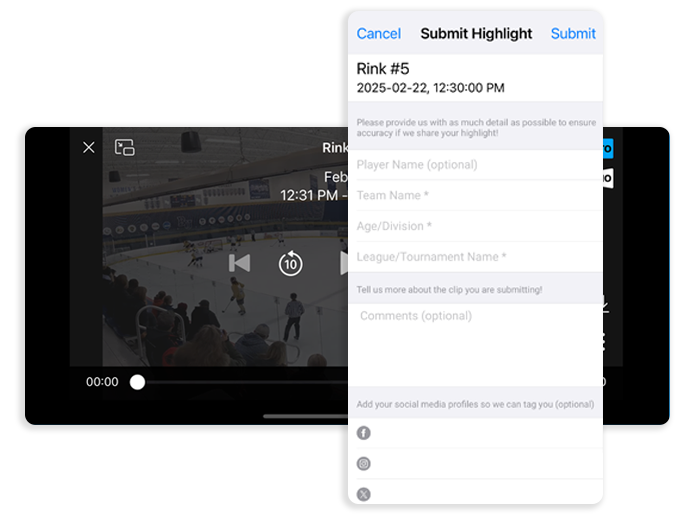
Step 3
Fill in the player name (optional), team name, age/division, league/tournament name and any additional comments or social media handles and click submit.